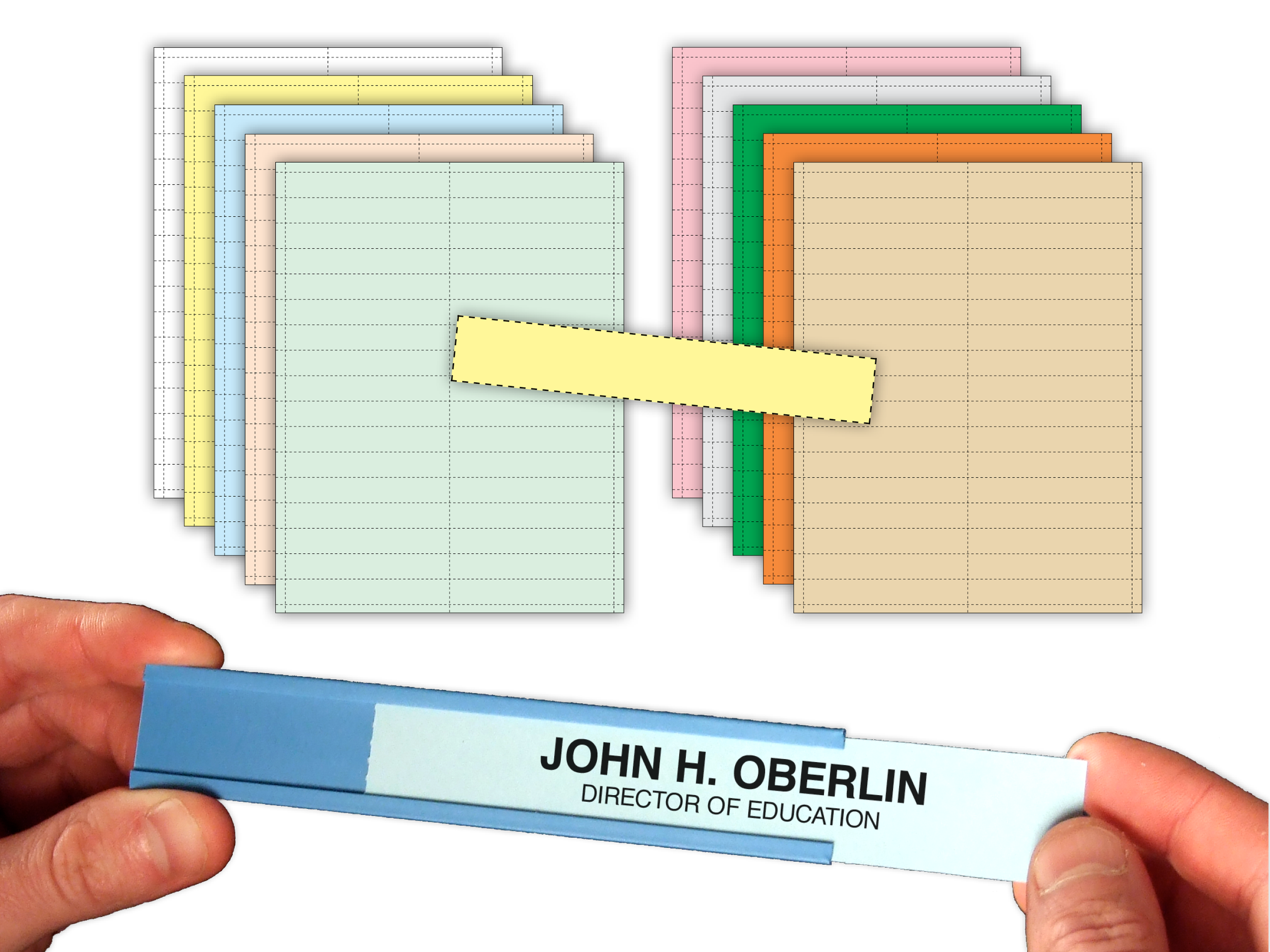
Letter-Easy™ Card Insert Lettering Templates Download
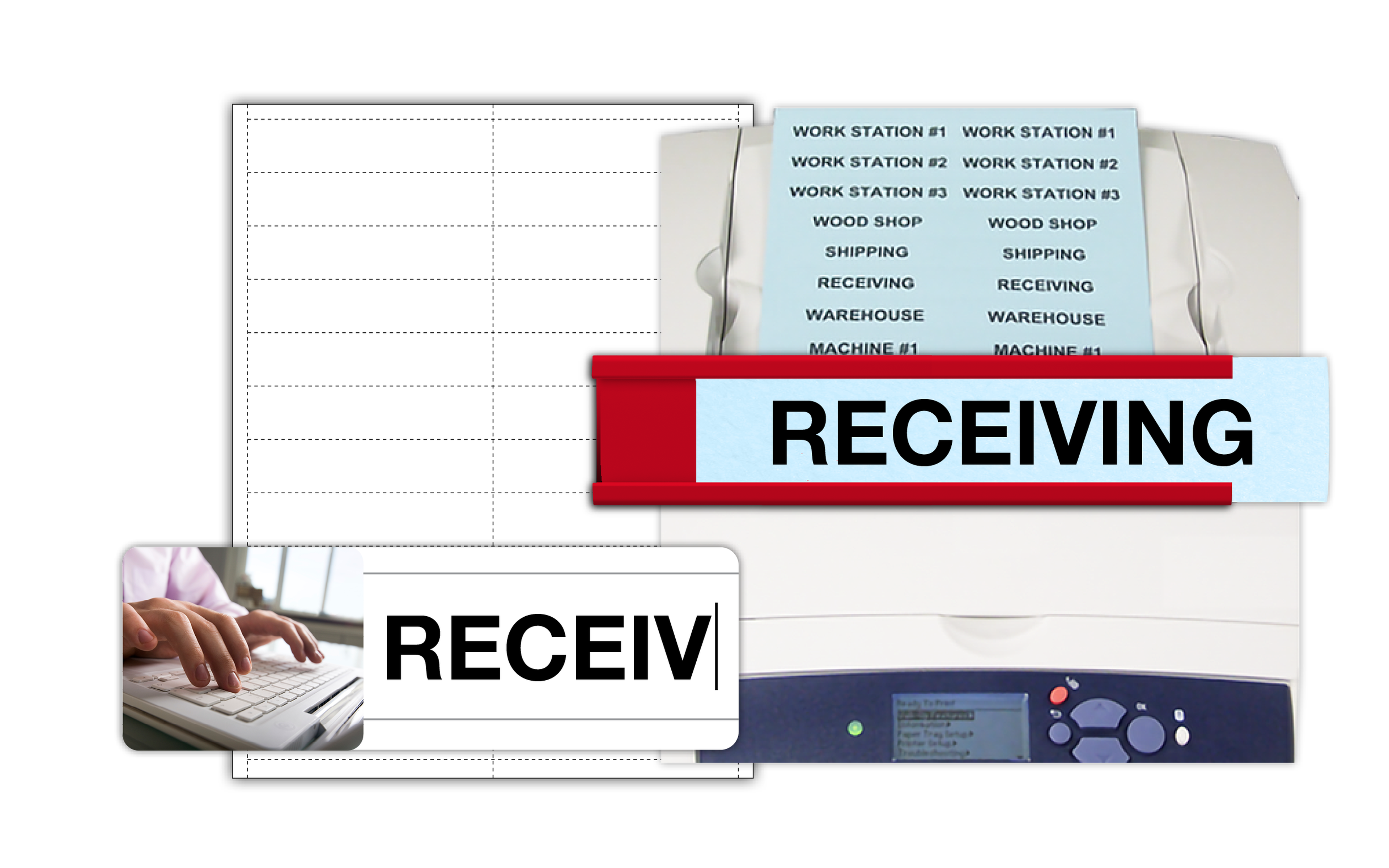
Computer print beautifully lettered card inserts and T-Cards for a professional-looking board display you will be proud to exhibit.
Instructions
1. Selecting your template
Using the item ID or size description, select your template from the card template list and open it. If you have trouble viewing the template grid, see FAQ.
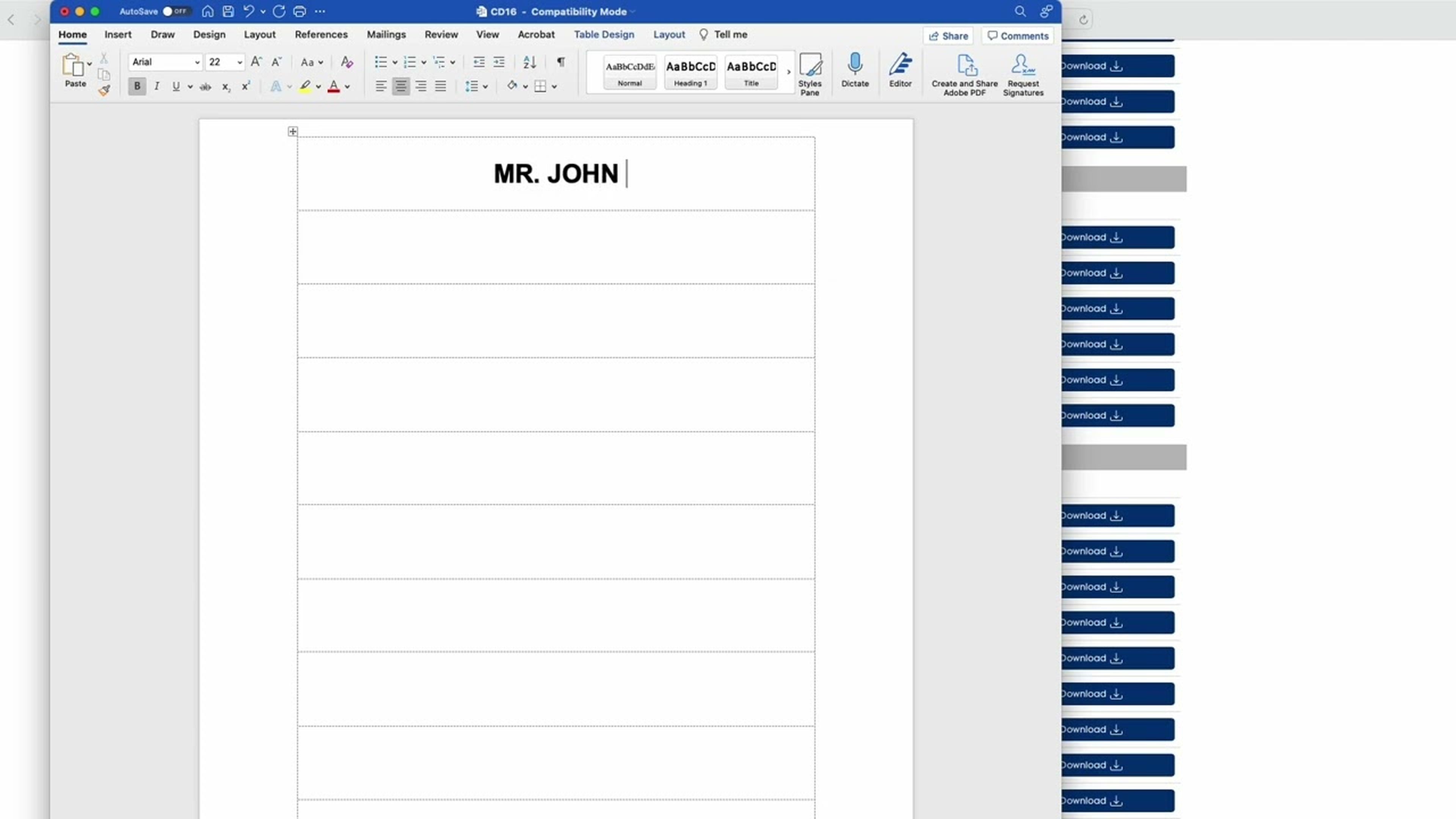
2. Entering your data
Enter the data into the table grid cells, selecting font style, color and size needed for your display. Be careful not to increase the size or amount of text, as it could alter the alignment of the grid, causing mis-alignment during printing.
3. Print your cards
It's good practice to print your document onto standard copy paper first and check alignment against an insert sheet to ensure proper layout.
Hint: Hold sheets together up to a light.Most card sheets will have a top edge that is 1/4" to the first perforated line. This should be the leading edge fed into the printer. If your card sheet does not have a 1/4" leading edge, either edge should work (centered).
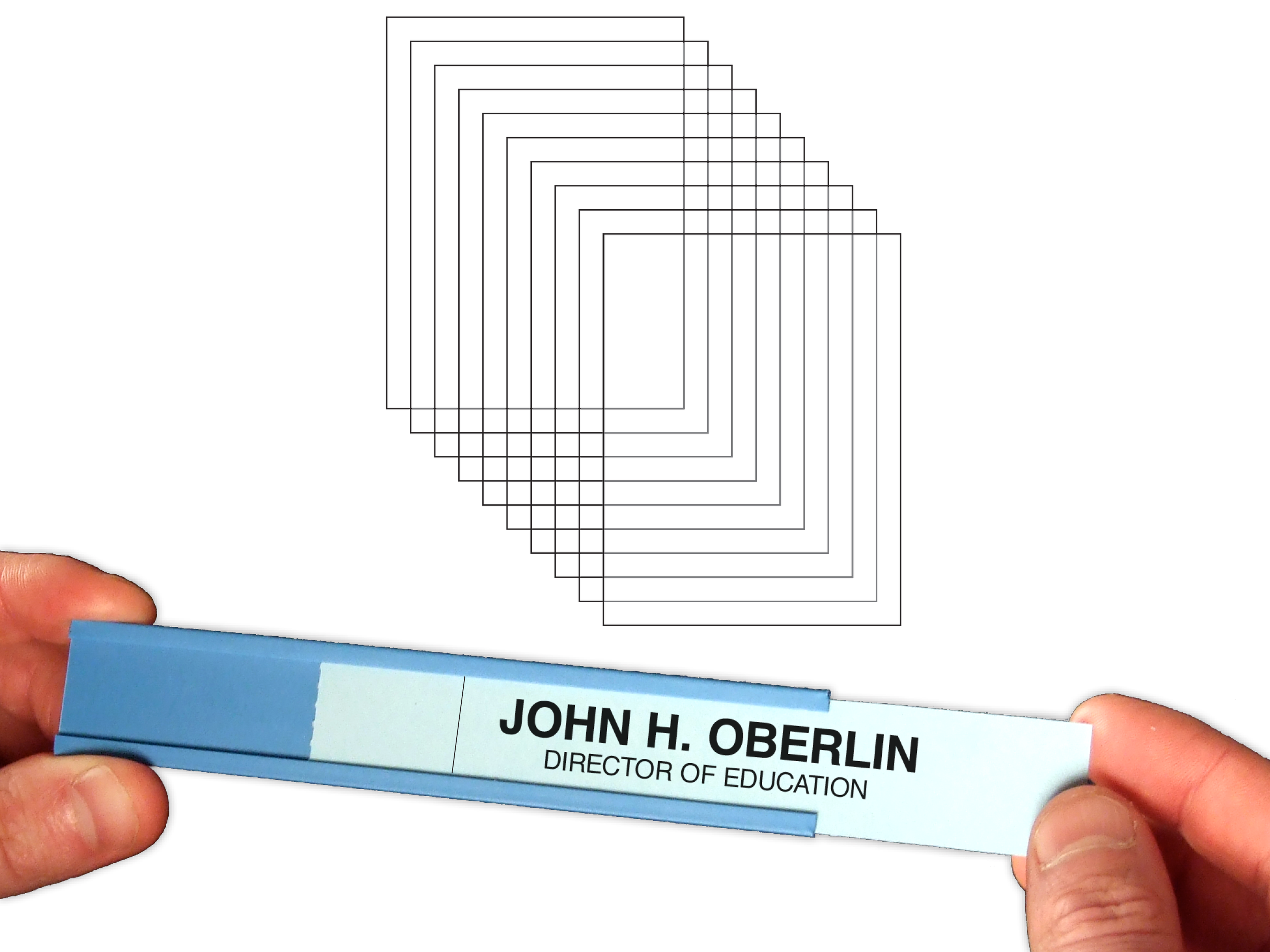
5. Removing Cards from Perforated Sheets
- Always fold the perforations in both directions before pulling them out of the sheet.
- Tear slowly to avoid ripping edges.
- T-Card sheets require a bit of extra care near the rounded edges.
FAQ
I've opened my template but can't see the grid
Turn on Gridlines setting. This should be located in the Layout or Table Layout menu, depending on your software version.
Which edge of the paper should I feed into the printer first?
Most of the templates have a top edge that is 1/4" to the first perforation. This is the leading edge of the sheet. If there is no 1/4" top edge, the template should be centered, so use either edge to lead.
Is there a way to test the alignment of the text before printing?
Always print your first data sheet onto a sheet of copy paper first and hold up to the light against one of your perforated card stock sheets to ensure proper alignment
I'm printing on transparency film and need to scissor cut my inserts.
If you're printing onto transparency film or some other non-perforated card stock and you want to be able to scissor cut your inserts, you'll need to turn the table cell borders on. The location for this can vary with software version, but generally, navigate to "Layout" and click "Borders". Select "Box" and any other desired parameters for your print out. Consult your user guide for more complete instructions.
Can I merge spreadsheet data into the template table?
Yes, this is possible if certain conditions are met. Please consult appropriate user guides for instructions.